Support/Advanced/Restream a YouTube video
Advanced setup

Restream a YouTube video with live captions.

Overlay QurbanAI captions onto a video playing on the same computer. This needs a free virtual audio cable to route the video’s sound into the app.

This is an advanced setup — most churches can skip it.

You only need this if you’re captioning a video that plays on the same computer (for example, restreaming a YouTube service). It uses a free virtual audio cable to route that video’s sound into QurbanAI. If you’re captioning a live speaker through a microphone or mixer, use Quick start instead.

Part 1 · Virtual audio cable

Install VB-Cable.

A free tool that creates a virtual cable between apps on your computer — one app’s sound out, another app’s sound in.

Install VB-Cable

Download VB-Cable from vb-audio.com/Cable. Extract the zip, run VBCABLE_Setup_x64, and install it. Restart the computer when it’s done.
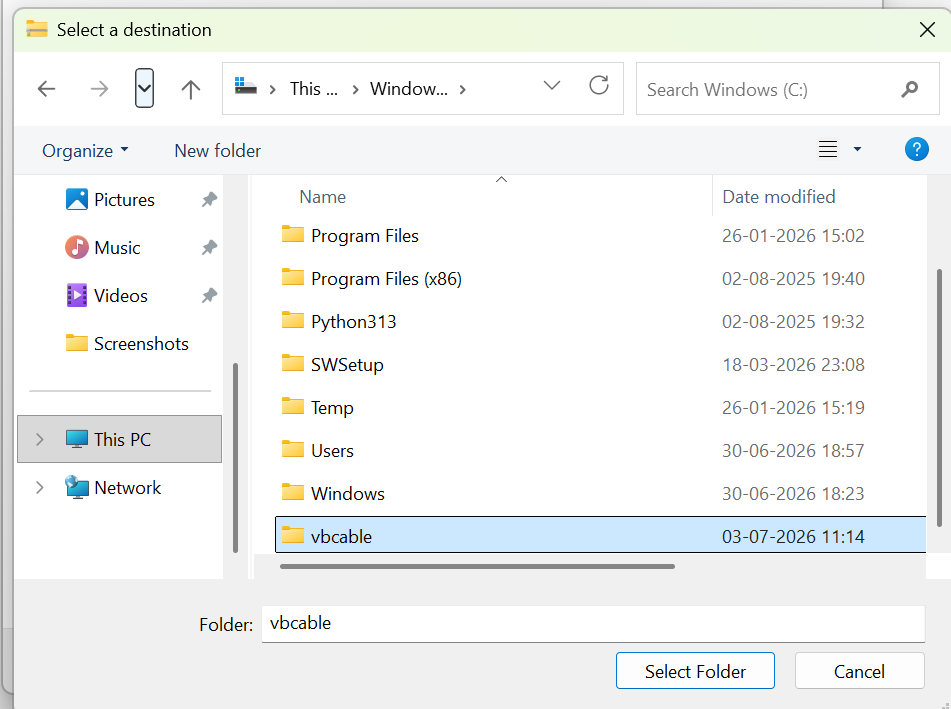
VB-Cable installer
Extract the download and run the x64 installer.

Confirm the two new audio devices

After the restart, right-click the speaker icon in the taskbar. You should see two new entries: CABLE Input and CABLE Output. These are the two ends of the virtual cable.
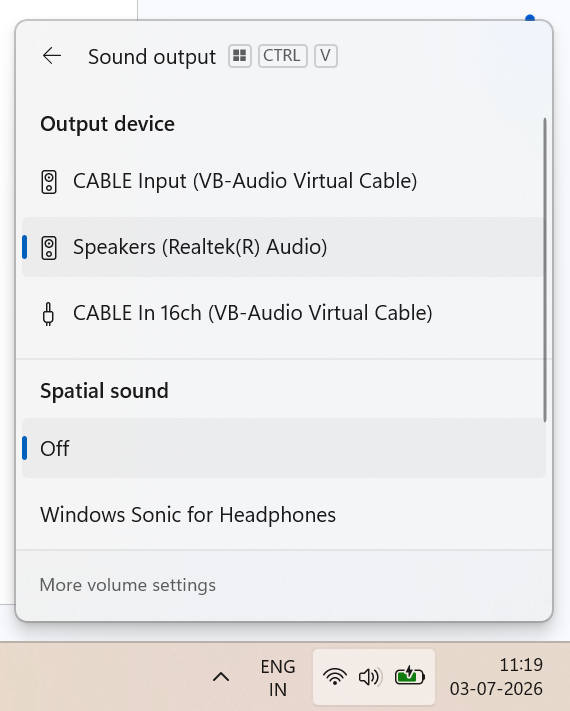
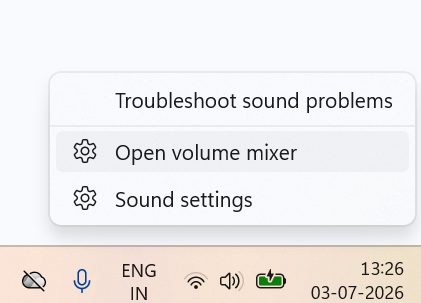
New CABLE audio outputs in Windows
Two new outputs appear after installing VB-Cable and restarting.
Part 2 · Route the audio

Send the video into QurbanAI.

Point the video’s sound into the cable, then have QurbanAI listen to the other end.

Send Chrome's audio into the cable

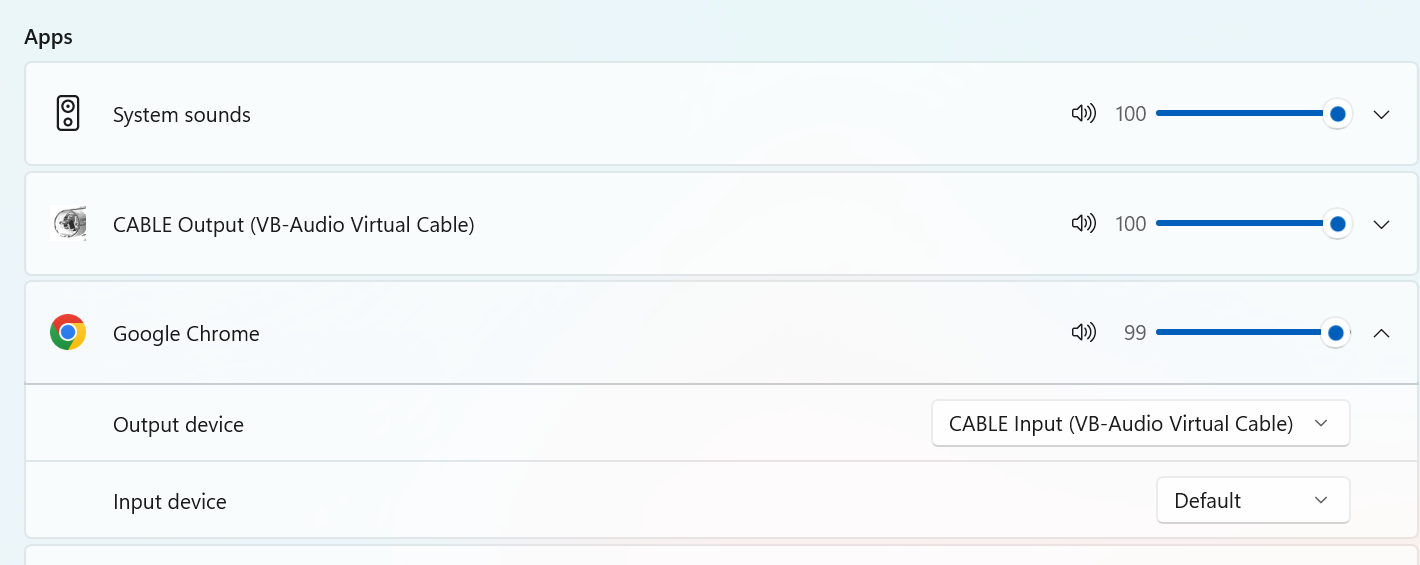
Right-click the volume icon and choose Open volume mixer. Find Google Chrome (the tab playing the video), and set its output device to CABLE Input (VB-Audio Virtual Cable).

Open volume mixer
Right-click the volume control and open the volume mixer.
Chrome output set to CABLE Input
Set Chrome's output to CABLE Input so its sound goes into the cable.

Point QurbanAI at the other end

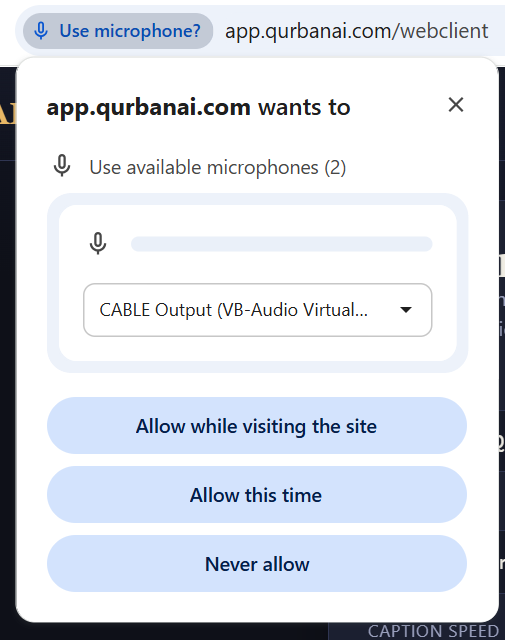
Open app.qurbanai.com/webclient, enter your licence, and click Allow microphone. When Chrome asks, you can pick the cable here too.

Microphone permission
Allow microphone access when Chrome asks.

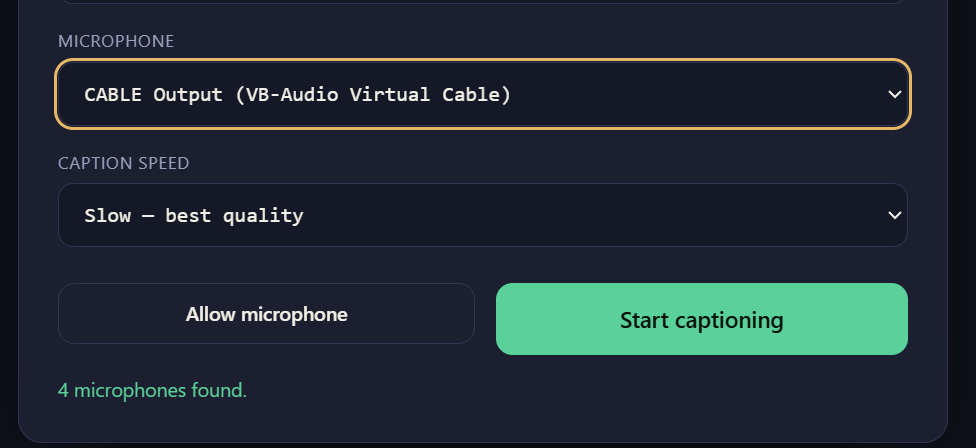
In the Microphone dropdown, choose CABLE Output (VB-Audio Virtual Cable). Now QurbanAI listens to whatever the video is playing.

Cable Output selected as microphone
Choose CABLE Output as your microphone — QurbanAI now hears the video.

Pick a caption speed and Start

Set the speed (Standard is fine for most videos) and click Start captioning. You’ll land on the captioning window — copy the overlay link, you’ll need it shortly.

See the lower thirds guide for the look options. For this flow, copy the overlay link now.

Part 3 · OBS

Build the scene in OBS.

Capture the video, drop the caption overlay on top, and add the cable as the audio source.

Silence OBS's own audio

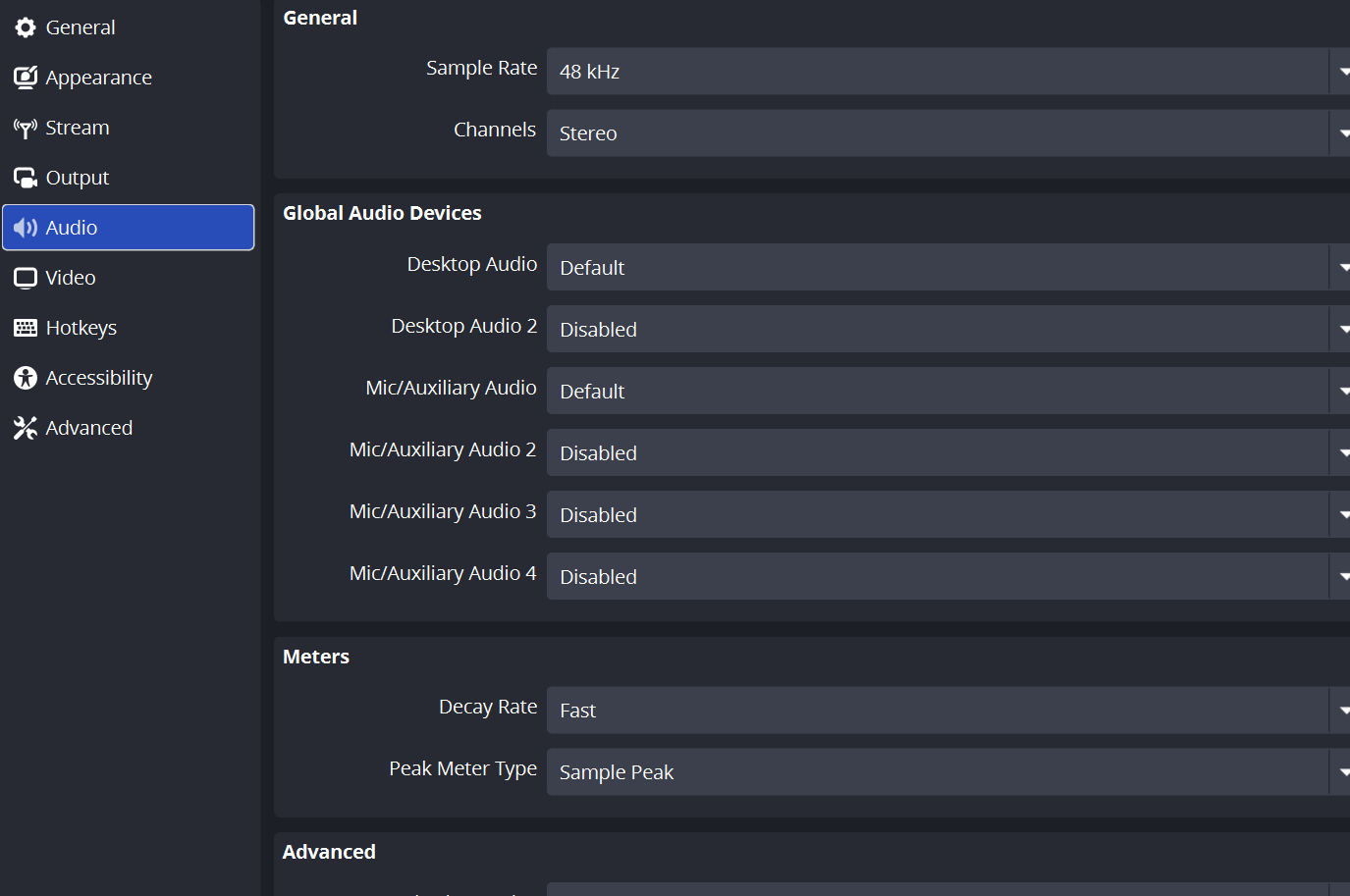
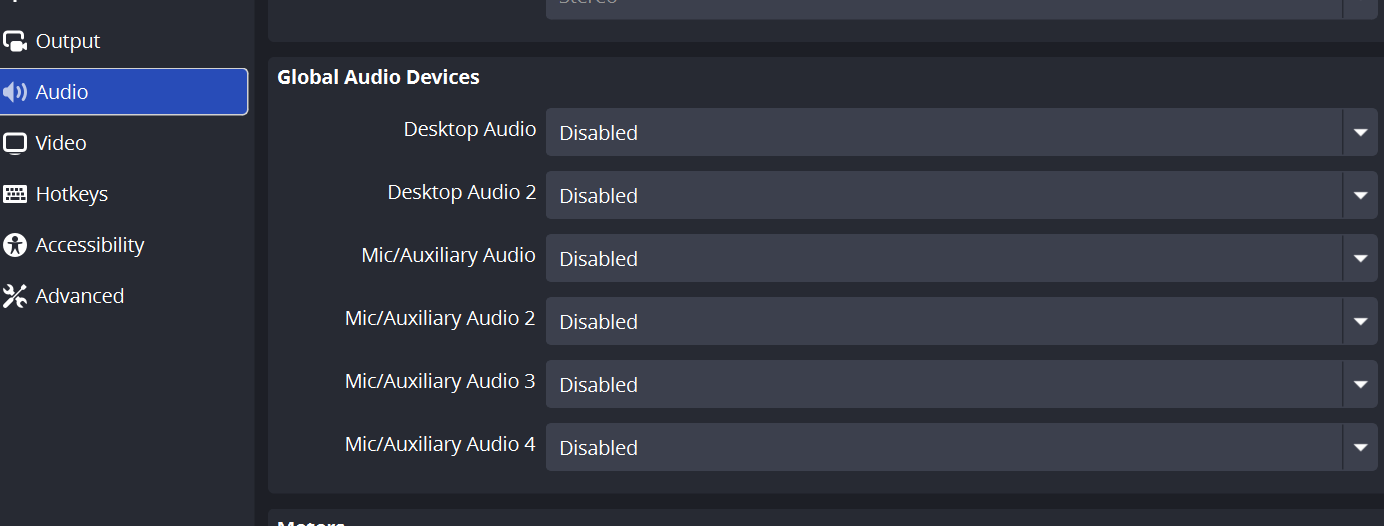
Open OBS → Settings → Audio. Set Desktop Audio and every Mic/Auxiliary device to Disabled. You’ll add the one audio source you actually want by hand.

OBS default audio settings
OBS audio settings as they come by default.
OBS audio devices disabled
Set the global audio devices to Disabled.

Create the scene and capture the video

Make a new scene, e.g. Video With Translated LT. Add a Window Capture (or Display Capture) source and choose the screen or window playing the video full-screen. You can uncheck Capture Cursor.

OBS add Window Capture
Add a Window Capture source.
OBS choose monitor
Choose the screen showing the video.

Add the caption overlay as a Browser source

Add a Browser source and paste the overlay link you copied from the captioning window.

OBS add Browser source
Add a Browser input source.
https://app.qurbanai.com/overlay.html?slug=life-fortune&style=elegant&layout=fullwidth&font=serif4&weight=600&size=m&lines=3&disclaimer=1&go=1

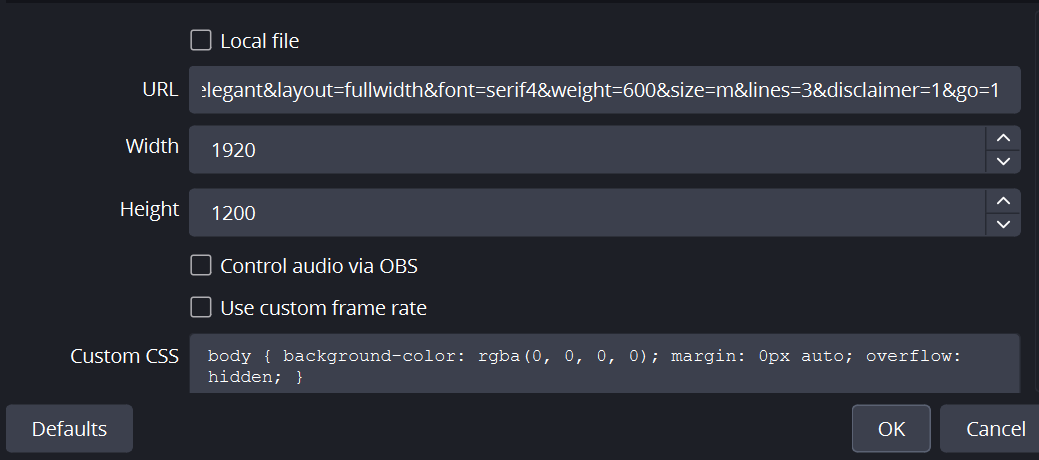
Use these settings so only the caption strip shows:

Width
1920
Height
1200
Custom CSS
body { background:rgba(0,0,0,0); margin:0 auto; overflow:hidden; }
OBS browser source URL and size
Paste the overlay URL; set width 1920, height 1200, transparent CSS.

Add the cable as an audio source

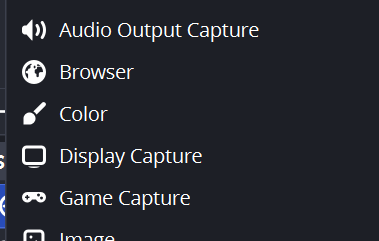
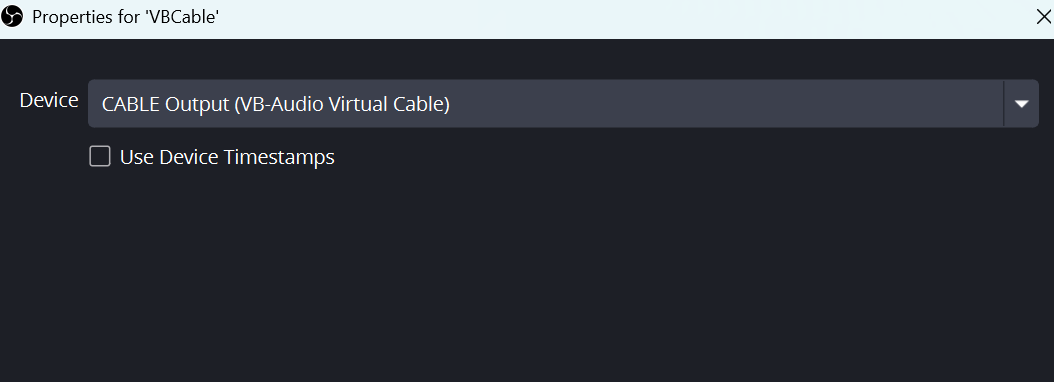
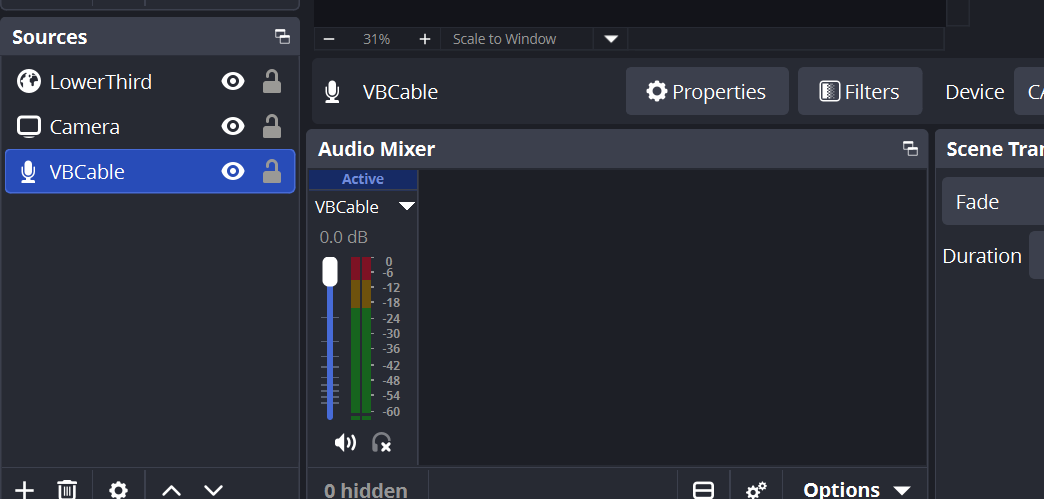
Add one more source — Audio Input Capture — and set its device to CABLE Output (VB-Audio Virtual Cable). This puts the video’s sound into your stream alongside the captions.

OBS audio input capture from cable
Choose CABLE Output as the Audio Input Capture device.
Part 4 · Monitoring

Listen along while you work.

Optional — restore local playback so you can hear the audio without breaking the routing.

Hear the audio yourself (optional)

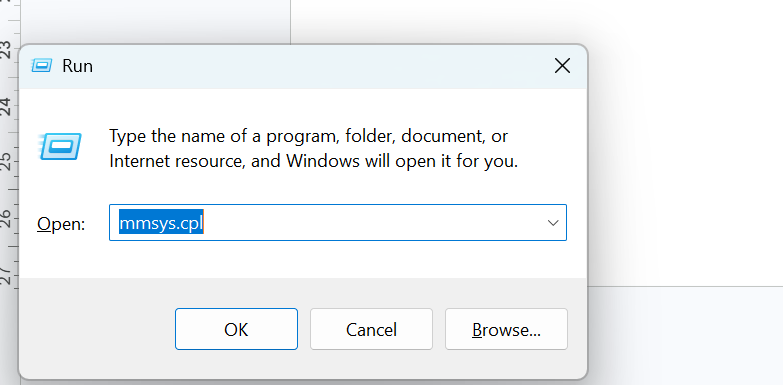
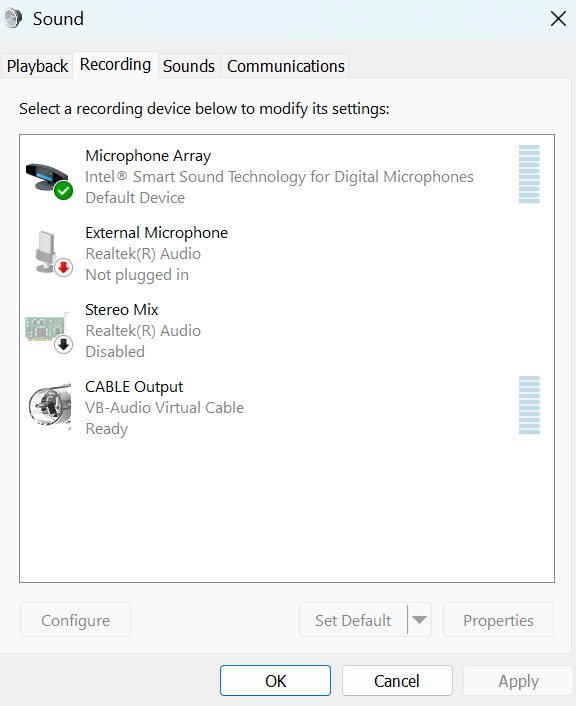
Routing Chrome into the cable means your local speakers go quiet. To hear it while you work, press Win + R, type mmsys.cpl, and open the Recording tab.

Windows Sound recording tab
Open the Recording tab of the Sound control panel.

Turn on “Listen to this device”

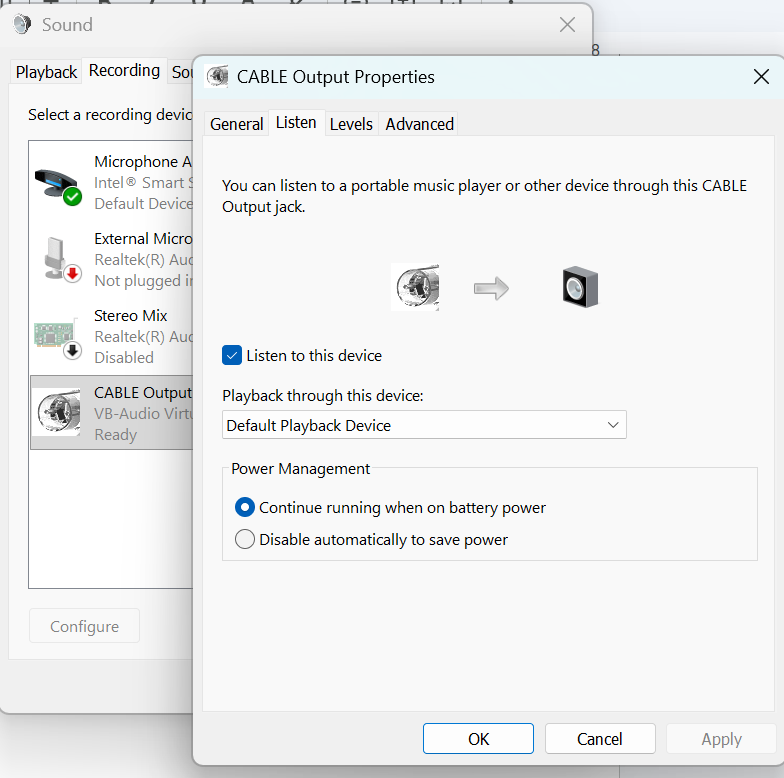
Right-click CABLE OutputPropertiesListen tab → tick Listen to this device, and choose your speakers below. Click OK. You’ll hear the audio again while the cable keeps feeding QurbanAI and OBS.

Listen to this device checkbox
Tick 'Listen to this device' and pick your speakers to hear the audio locally.

Once this is wired up, the lower third appears over the video and you can start streaming. Everything after the cable setup is standard OBS — the same overlay link works in vMix too.